Solution Article: Switch Roles (Admin, Teacher, Learner) – Teacher View
Summary
Users assigned multiple roles (Admin, Teacher, Learner) can switch between them directly from the application interface. This guide explains how to enable multiple roles and how users can switch views.
Steps
Log in as an Admin
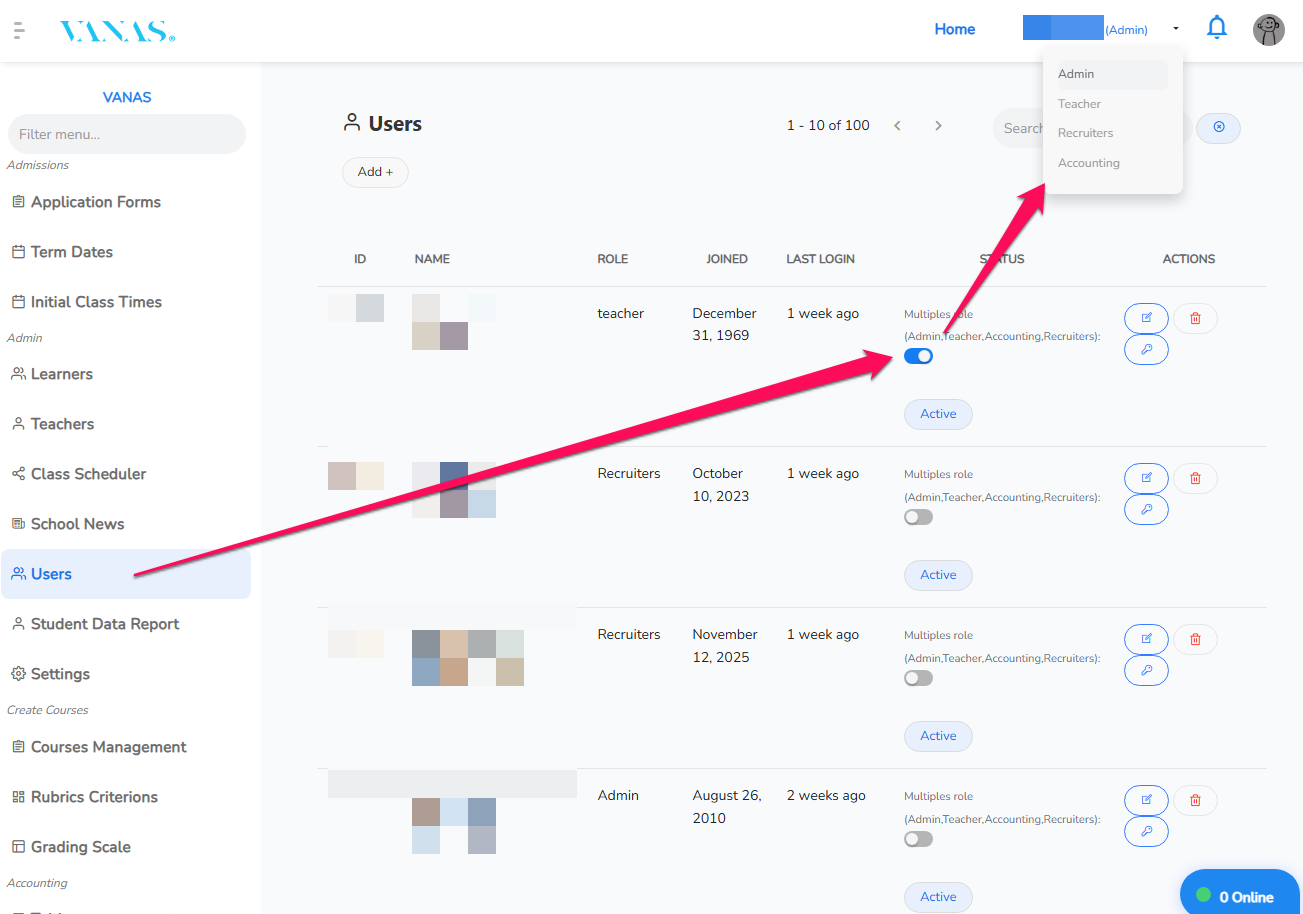
Access the system using an administrator account.Select Users
From the left menu, navigate to Users.Enable Multiple Roles for the Desired User
Open the user profile.
Assign the additional roles you want them to have (Admin, Teacher, Learner).
Save your changes.
Log In With That User
Sign out of the admin account if needed, then log in using the user account that has multiple roles assigned.Switch Roles
In the top-right corner, open the dropdown menu.
Select Switch Role.
Choose the role you want to activate (for example, Teacher).
You can now view and access the system according to the selected role.
See images for visual reference.
Was this article helpful?
That’s Great!
Thank you for your feedback
Sorry! We couldn't be helpful
Thank you for your feedback
Feedback sent
We appreciate your effort and will try to fix the article