Solution Article: Uploading Files to the Student Library (Course, Term, or Semester)
Summary
VANAS LMS allows administrators to upload learning materials to student libraries at the course, term, or semester level. These files become accessible to both teachers and learners.
Steps
Access the LMS with Your Admin Account
Log in using an administrator account to access course management features.Select Course Management
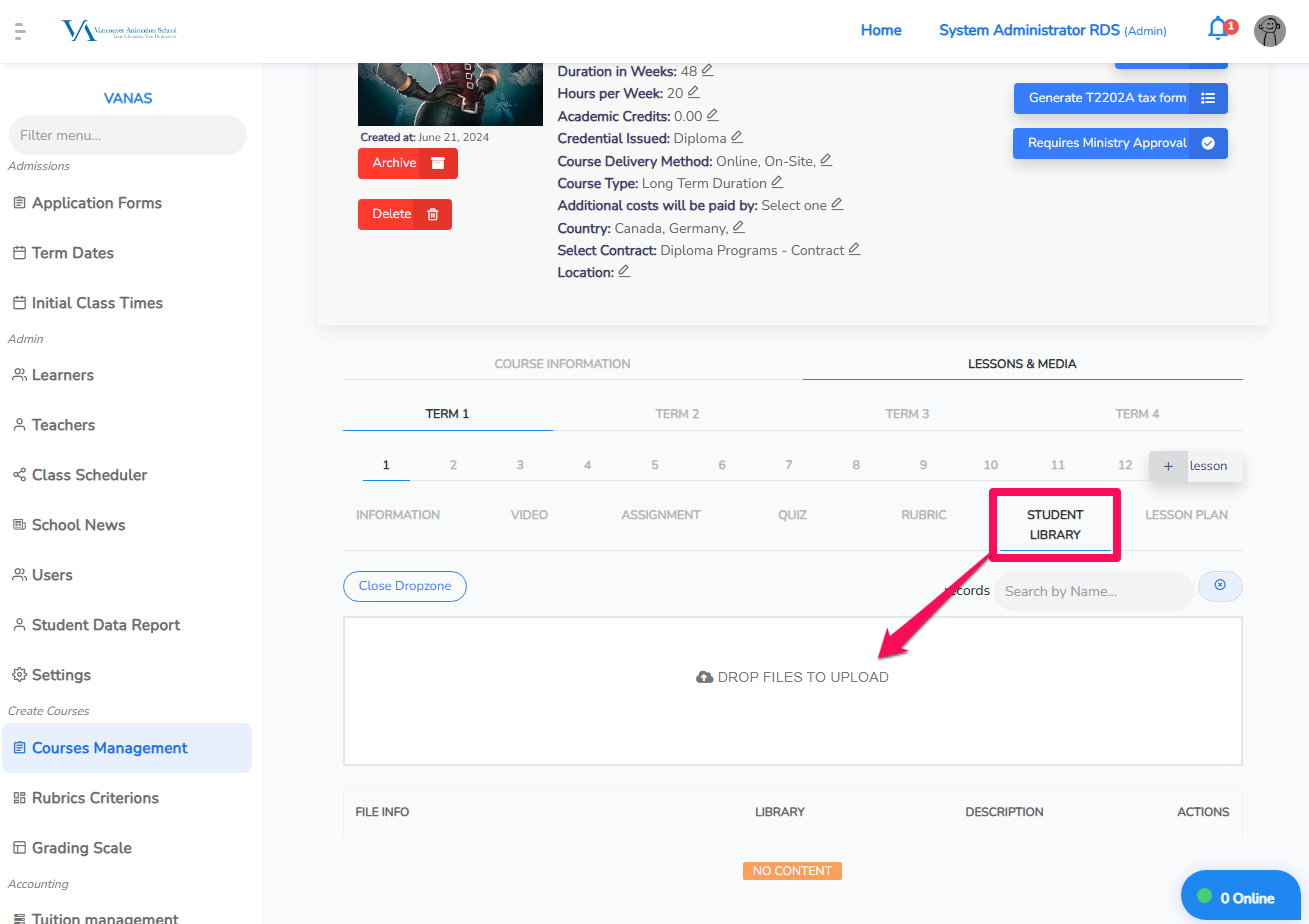
From the main menu, go to Courses Management.Select the Term and Session Number
Choose the specific term and session for which you want to upload materials.Click on Add Files
Open the section where student library files are managed and click Add Files.Upload Your Files
Select the files from your computer and upload them to the library.
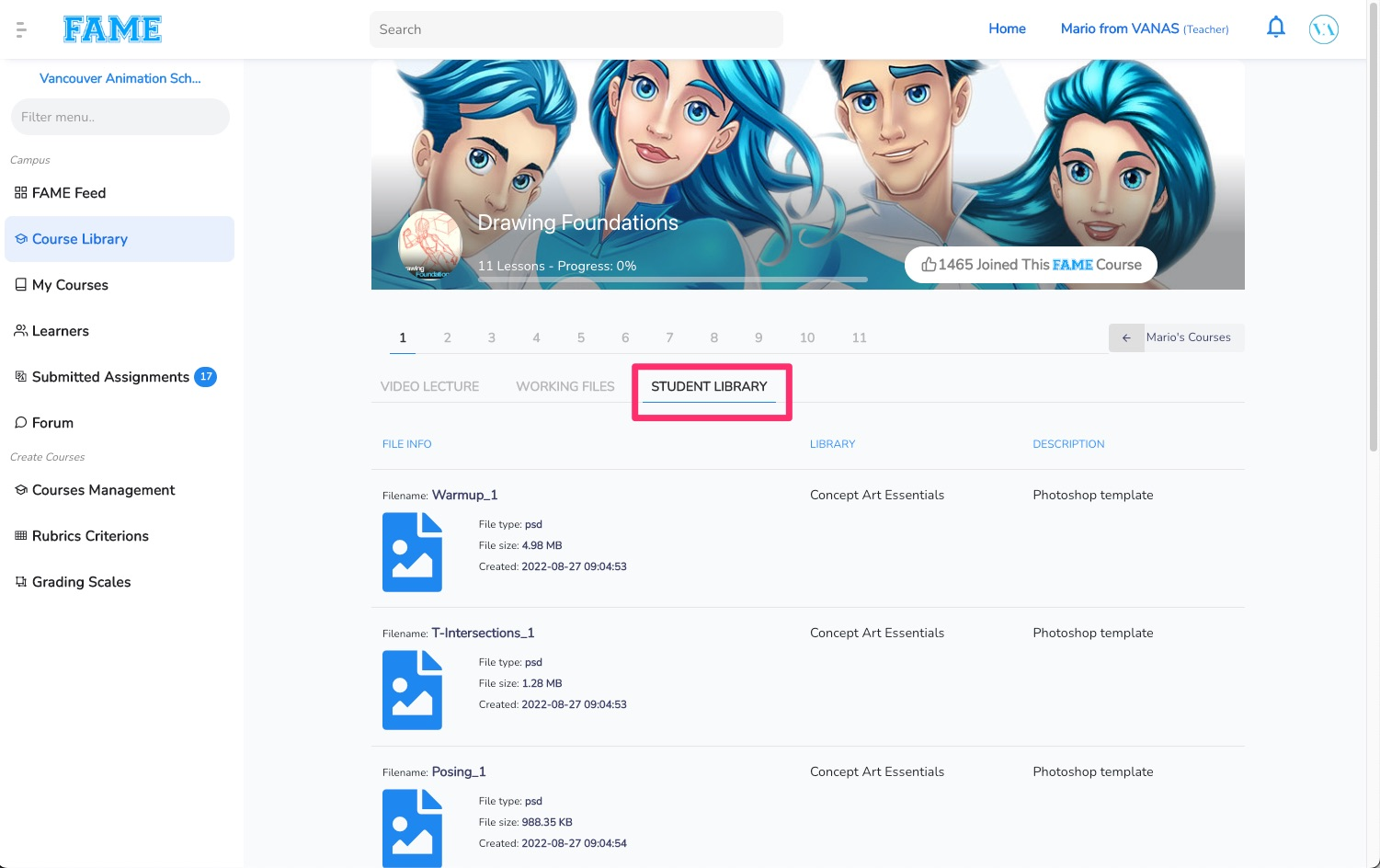
Once uploaded, the files will be visible to instructors and learners enrolled in that course or term.
See image for reference.
This image shows the Learner's view and how to access the student library.
Was this article helpful?
That’s Great!
Thank you for your feedback
Sorry! We couldn't be helpful
Thank you for your feedback
Feedback sent
We appreciate your effort and will try to fix the article