Summary
To send email through Microsoft 365 (Office 365), you must enable SMTP AUTH for your mailbox and, if Multi-Factor Authentication (MFA) is enabled, generate an App Password to use as your SMTP password.
Applies To
Users or administrators configuring Microsoft 365 accounts to send email through an external application.
Before You Begin
You’ll need:
Access to the Microsoft 365 Admin Center (or help from an admin).
MFA enabled on your account (for App Passwords).
Steps
Enable SMTP AUTH for Your Mailbox
Go to the Microsoft 365 Admin Center: https://admin.microsoft.com
In the left menu, navigate to Users → Active users.
Select your user account.
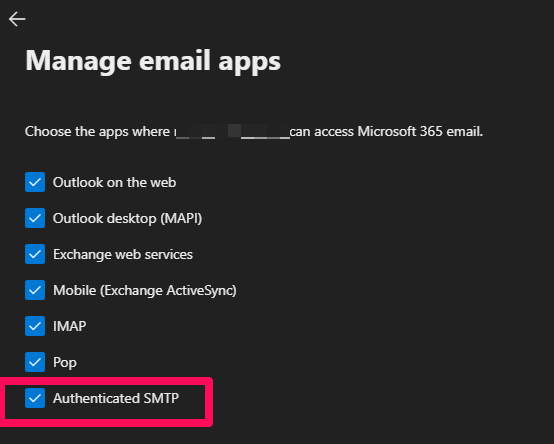
Click Mail → Manage email apps.
Ensure Authenticated SMTP is checked.
If you don’t see this option:
An admin must enable it tenant-wide:
Go to Settings → Org settings → Modern authentication.
Ensure “Authenticated SMTP” is enabled for the organization.
Generate an App Password (if MFA is enabled)
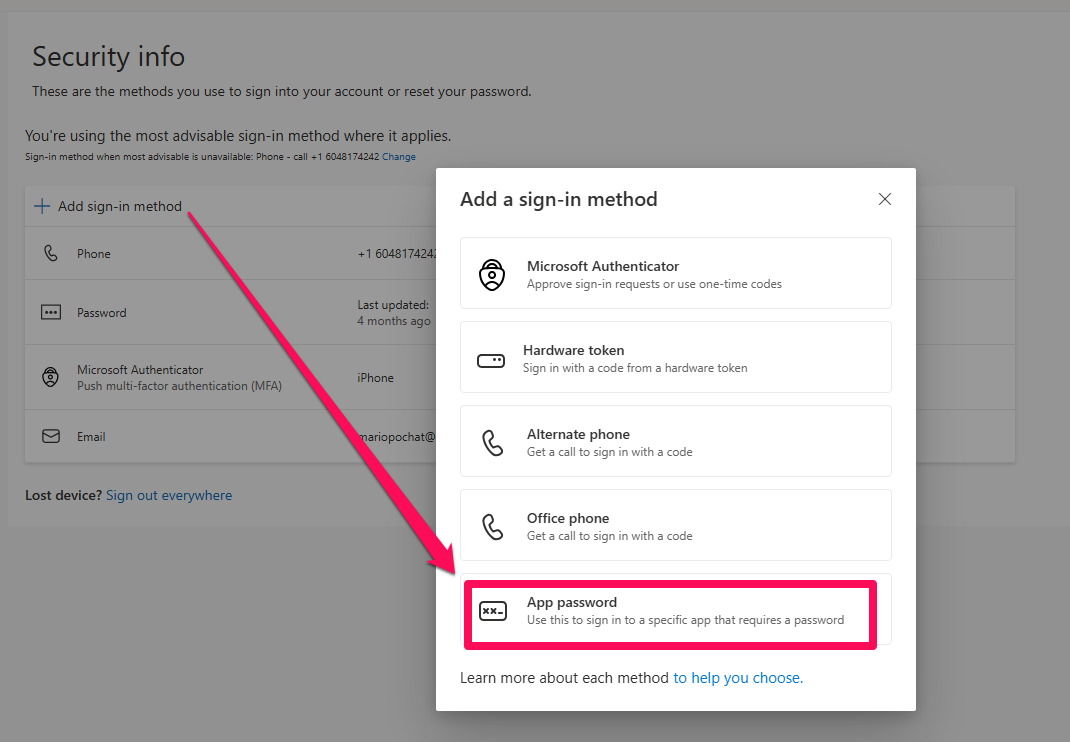
Click Add method → App password.
Name it (for example, SMTP for VANAS) and click Next.
Copy the generated App Password — you’ll only see it once.
Use this App Password as your SMTP password in your application.
If you do not see the App Password option:
Your admin may need to enable App Passwords for your account.
App Passwords are only available if MFA is turned on.
Use These SMTP Settings in Your Application
SMTP Host:
smtp.office365.comPort:
587Encryption:
TLSUsername: your full Microsoft 365 email address
Password: the App Password generated above
Once saved, send a test email to verify your configuration.
Was this article helpful?
That’s Great!
Thank you for your feedback
Sorry! We couldn't be helpful
Thank you for your feedback
Feedback sent
We appreciate your effort and will try to fix the article