Summary
When setting up AWS Simple Email Service (SES) for SMTP, you must not use a regular IAM access key.
Instead, SES requires a special SMTP credential pair that’s created through the SES console.
Applies To
Administrators integrating AWS SES for outbound email through SMTP.
Before You Begin
Ensure you have:
Access to the AWS Management Console
The correct SES region selected
Admin permissions to create IAM users and SMTP credentials
Steps
Go to the AWS SES Console
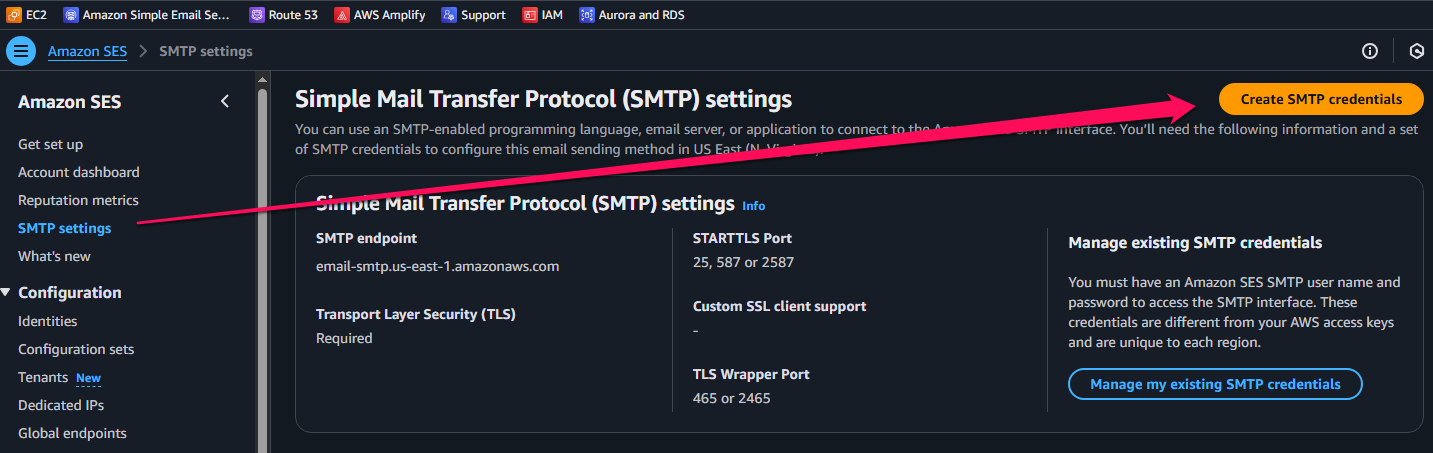
Sign in to your AWS account and open the SES service.Navigate to SMTP Settings
In the left-hand menu, select “SMTP Settings.”Click “Create SMTP Credentials”
This will launch a guided process that:Creates a new IAM user with the appropriate Amazon SES sending policy
Generates a valid SMTP username and password
Copy and Save Your SMTP Credentials
The SMTP username will look like:AKIAxxxxxxxxxxxxxxxx
The SMTP password will be a long encoded string, not your AWS secret key.
Important Notes
Do not use regular AWS Access Keys (created under IAM → Security Credentials).
Only credentials created via “Create SMTP Credentials” in SES will work for SMTP.
How to Test
In your application’s email settings, enter:
SMTP Host:
email-smtp.<region>.amazonaws.comSMTP Port:
587(or465for SSL)Encryption: TLS
Username: Your SES SMTP username
Password: Your SES SMTP password
Send a test email to verify configuration.
See images for visual reference
Was this article helpful?
That’s Great!
Thank you for your feedback
Sorry! We couldn't be helpful
Thank you for your feedback
Feedback sent
We appreciate your effort and will try to fix the article