Summary:
VANAS LMS allows administrators to configure Gmail as the email provider for sending notifications and communications. Using an App Password ensures secure SMTP authentication, especially when Two-Factor Authentication (2FA) is enabled.
Applies To:
VANAS LMS – Administrators
Before You Begin
Ensure you have a Google account for sending emails.
If 2FA is enabled on your Google account, you will need to create an App Password.
Steps to Configure Gmail
Step 1 – Create a Gmail App Password (if 2FA is enabled)
Sign in to your Google account used for sending emails.
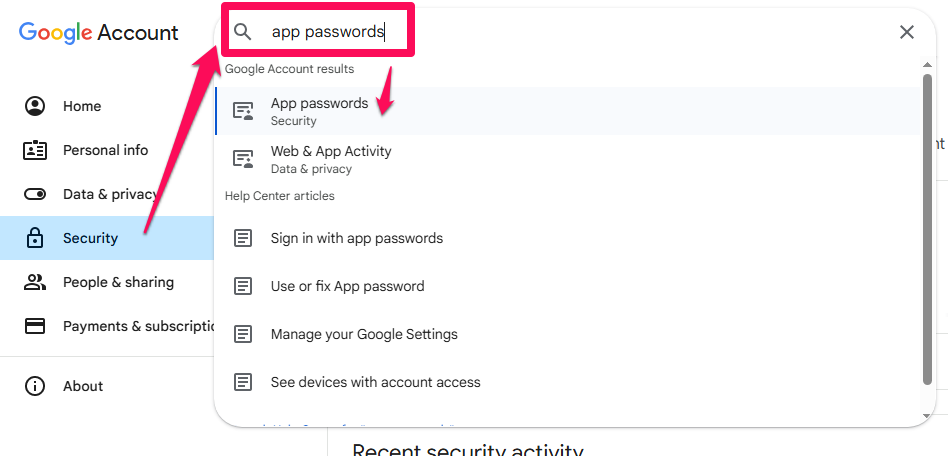
Navigate to Security → App passwords.
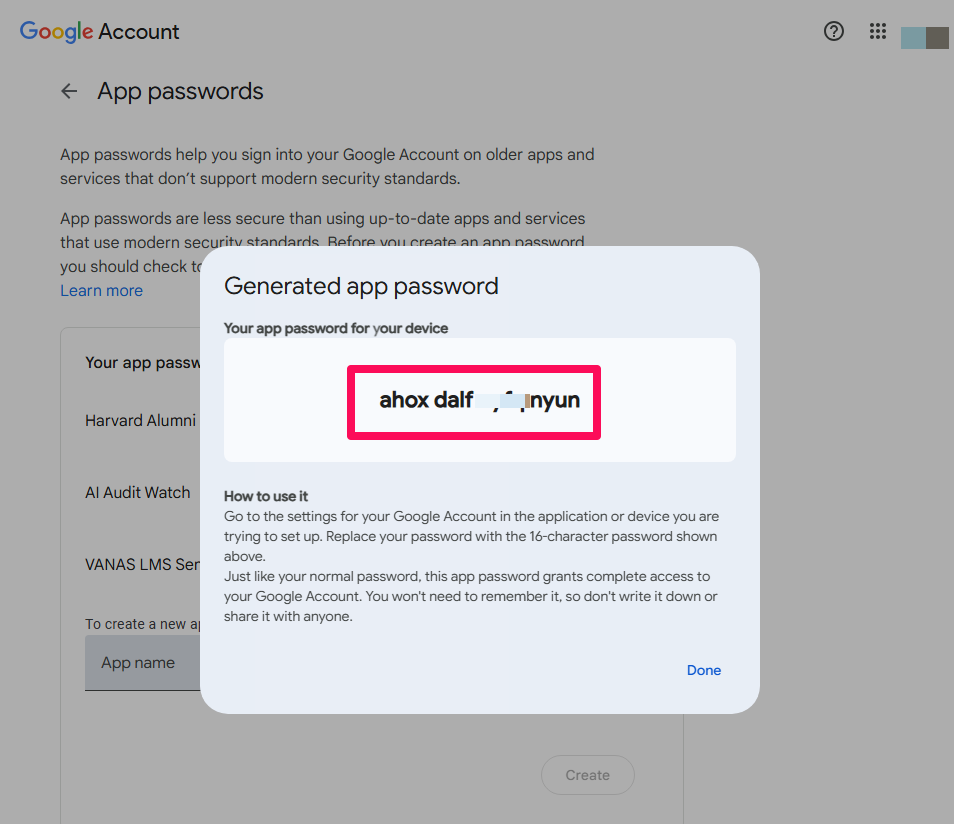
Create an App Password for “Mail” or “Other”.
Copy the 16-character password. This will be used as the SMTP password in VANAS LMS.
Note: If you don’t have 2FA enabled, Google may block SMTP logins. Using an App Password is the recommended and secure path.
Step 2 – Save Gmail Settings in VANAS LMS (UI or API)
Option A — Using the UI:
Open your Email Settings admin page in VANAS LMS.
Choose Provider: Gmail.
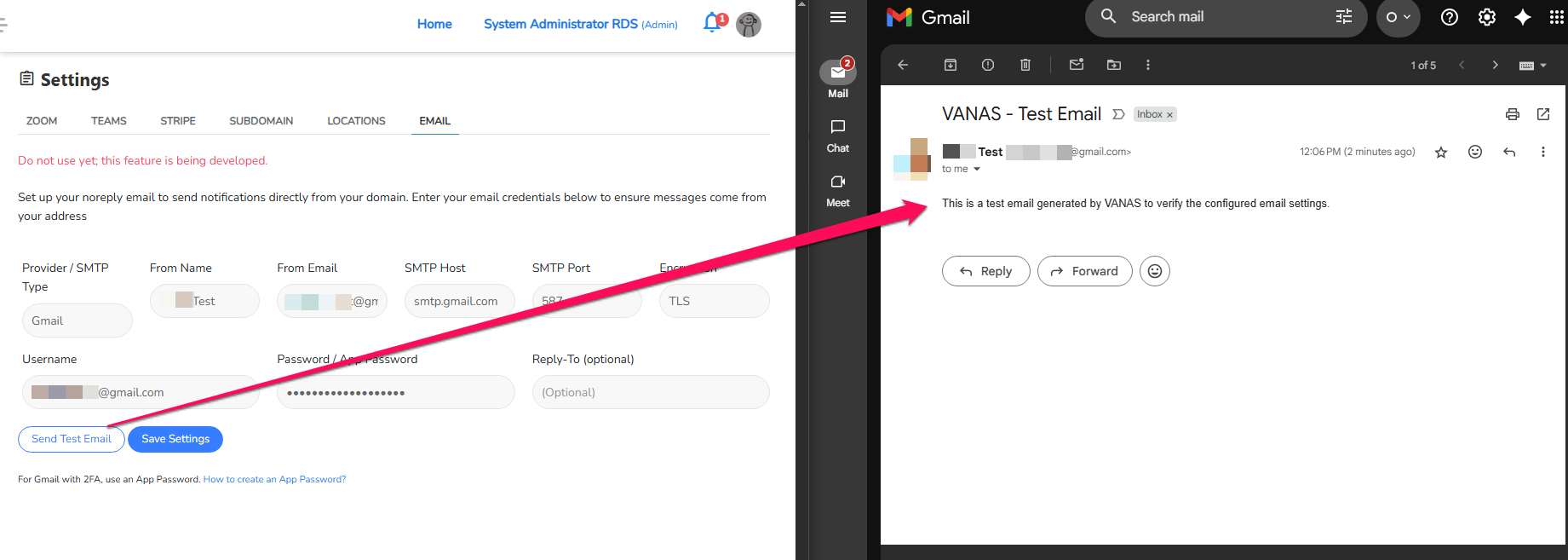
Fill in the following fields:
From Name: e.g., School Name
From Email: your sending email address (usually the same as your Gmail username)
SMTP Host: smtp.gmail.com
SMTP Port: 587
Encryption: TLS
Username: your.full.email@gmail.com
Password: the App Password you generated in Step 1
Click Save Settings.
Click Send Test Email to confirm your configuration.
How to Test
Click Send Test Email from the Email Settings page.
Verify that the test email is received successfully at the specified address.
Troubleshooting
If the email fails to send, ensure the App Password is correct and that 2FA is enabled on the Google account.
Confirm the SMTP host is set to smtp.gmail.com and the port is 587 with TLS encryption.
Make sure the From Email matches the Gmail account used for authentication.
Check your Google account security settings for any blocked sign-in attempts.
See images for visual reference.
Was this article helpful?
That’s Great!
Thank you for your feedback
Sorry! We couldn't be helpful
Thank you for your feedback
Feedback sent
We appreciate your effort and will try to fix the article