Summary:
VANAS LMS allows administrators to configure Microsoft 365 mailboxes for sending notifications and communications. Enabling Authenticated SMTP on the mailbox allows the LMS to securely send emails using the specified account.
Applies To:
VANAS LMS – Administrators
Before You Begin
Ensure you have an admin account for your Microsoft 365 organization.
Identify the mailbox you want to use for sending emails.
Steps to Set Up Microsoft Email
Step 1 – Sign in to Microsoft 365 Admin Center
Open a browser and go to Microsoft 365 Admin Center.
Sign in with your organization admin account.
Step 2 – Open the Exchange Admin Center
In the left menu, click Show all if the full menu is not visible.
Click Exchange (under “Admin centers”) to open the Exchange admin experience.
Step 3 – Find the Mailbox
In the Exchange admin center, go to Recipients → Mailboxes.
Find and select the user/mailbox you want the LMS to send from (e.g., sender@yourdomain.com).
Step 4 – Enable SMTP for the Mailbox
With the mailbox selected, locate Mail, Mailbox features, or Email apps (UI labels may vary).
Click Manage email apps or Email apps.
Ensure Authenticated SMTP (sometimes listed as “SMTP AUTH”) is enabled.
Click Save or Close.
What this does: It allows the mailbox to authenticate to smtp.office365.com using a username and password for sending emails.
How to Test
In VANAS LMS, open the Email Settings page.
Enter the mailbox credentials (username and password) for SMTP.
Click Send Test Email to confirm that the mailbox can send emails successfully.
Troubleshooting
If the test email fails, ensure Authenticated SMTP is enabled for the mailbox.
Verify the SMTP host is smtp.office365.com and the correct port (587 or 25) is used with TLS encryption.
Confirm the username matches the mailbox email address and the password is correct.
Check for any security or conditional access policies in Microsoft 365 that may block SMTP connections.
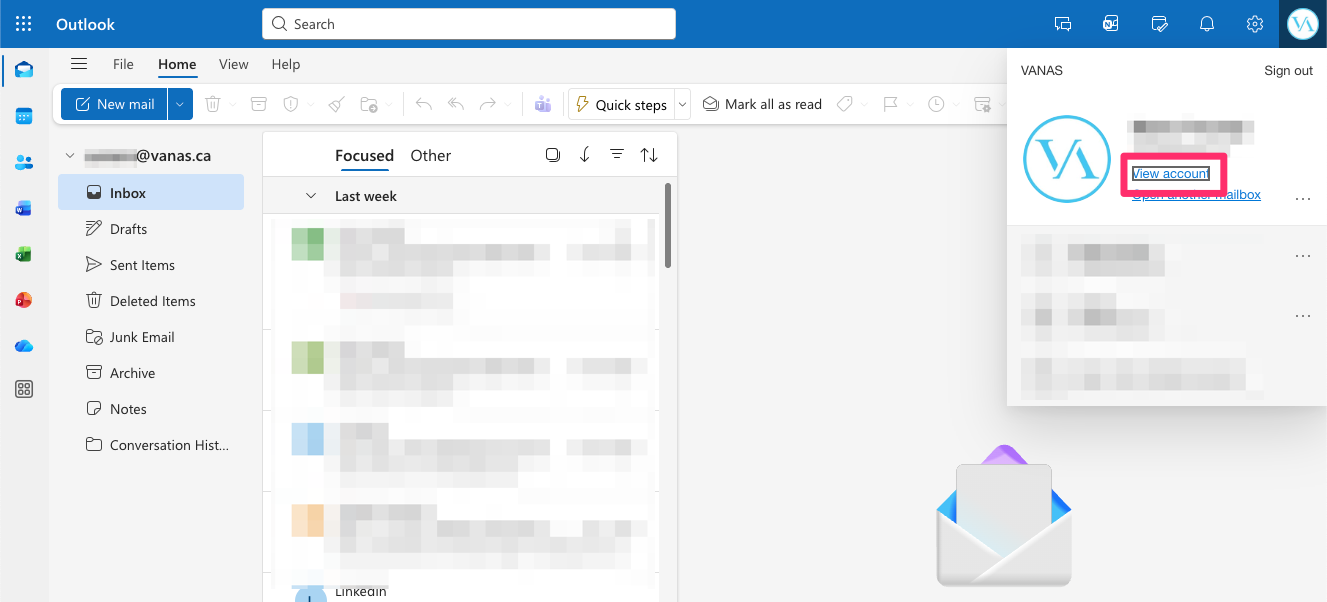
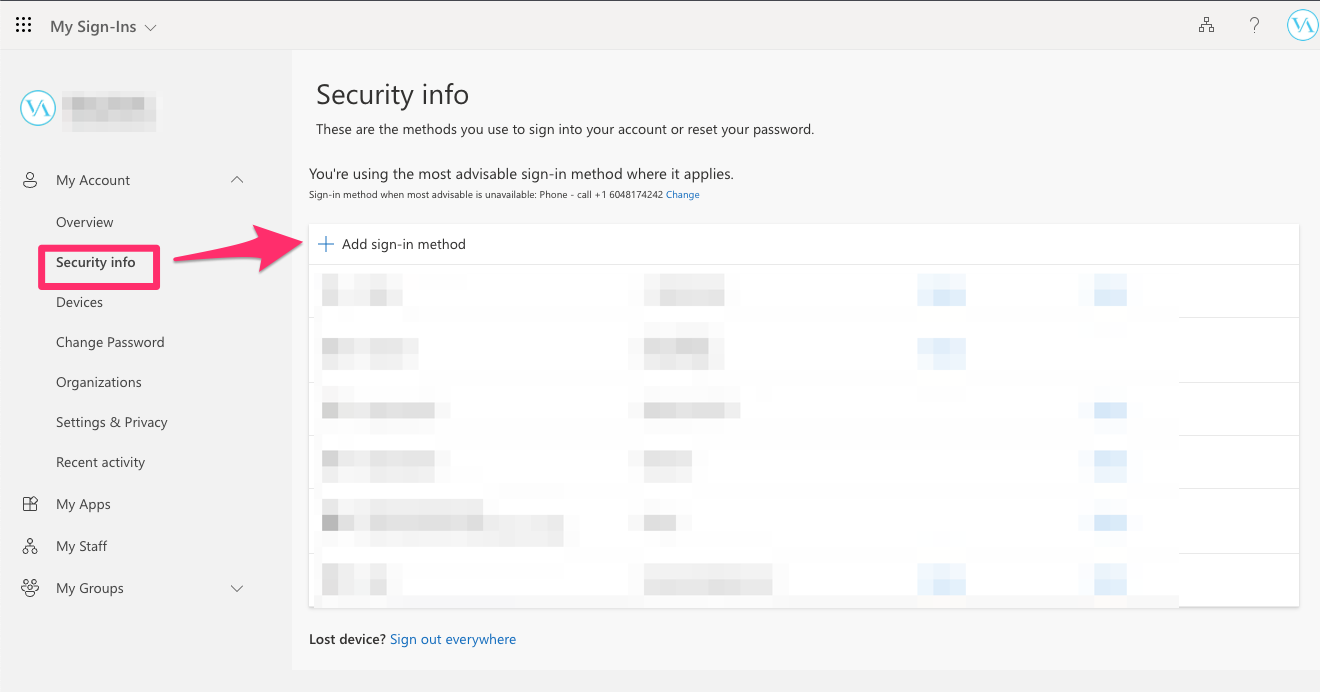
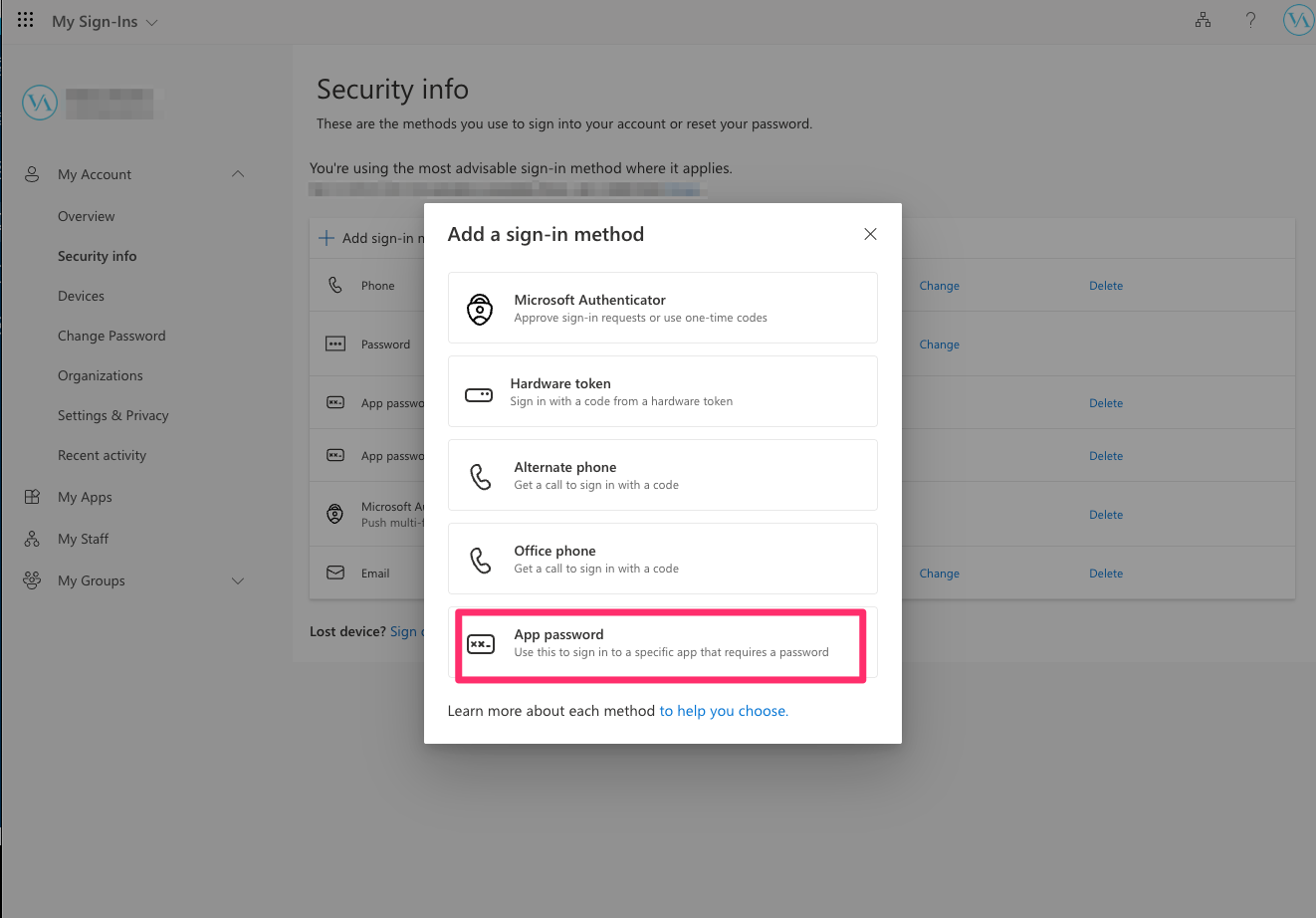
Via App Password
Was this article helpful?
That’s Great!
Thank you for your feedback
Sorry! We couldn't be helpful
Thank you for your feedback
Feedback sent
We appreciate your effort and will try to fix the article