Summary:
VANAS LMS allows administrators to connect Microsoft Teams through Azure App registration. This setup enables secure meeting creation and authentication directly within the LMS using Microsoft Graph API permissions.
Applies To:
VANAS LMS – Administrators
Before You Begin
Ensure you have access to your Microsoft Azure Portal and the required administrative permissions to register applications and grant API access.
Steps to Set Up Azure App
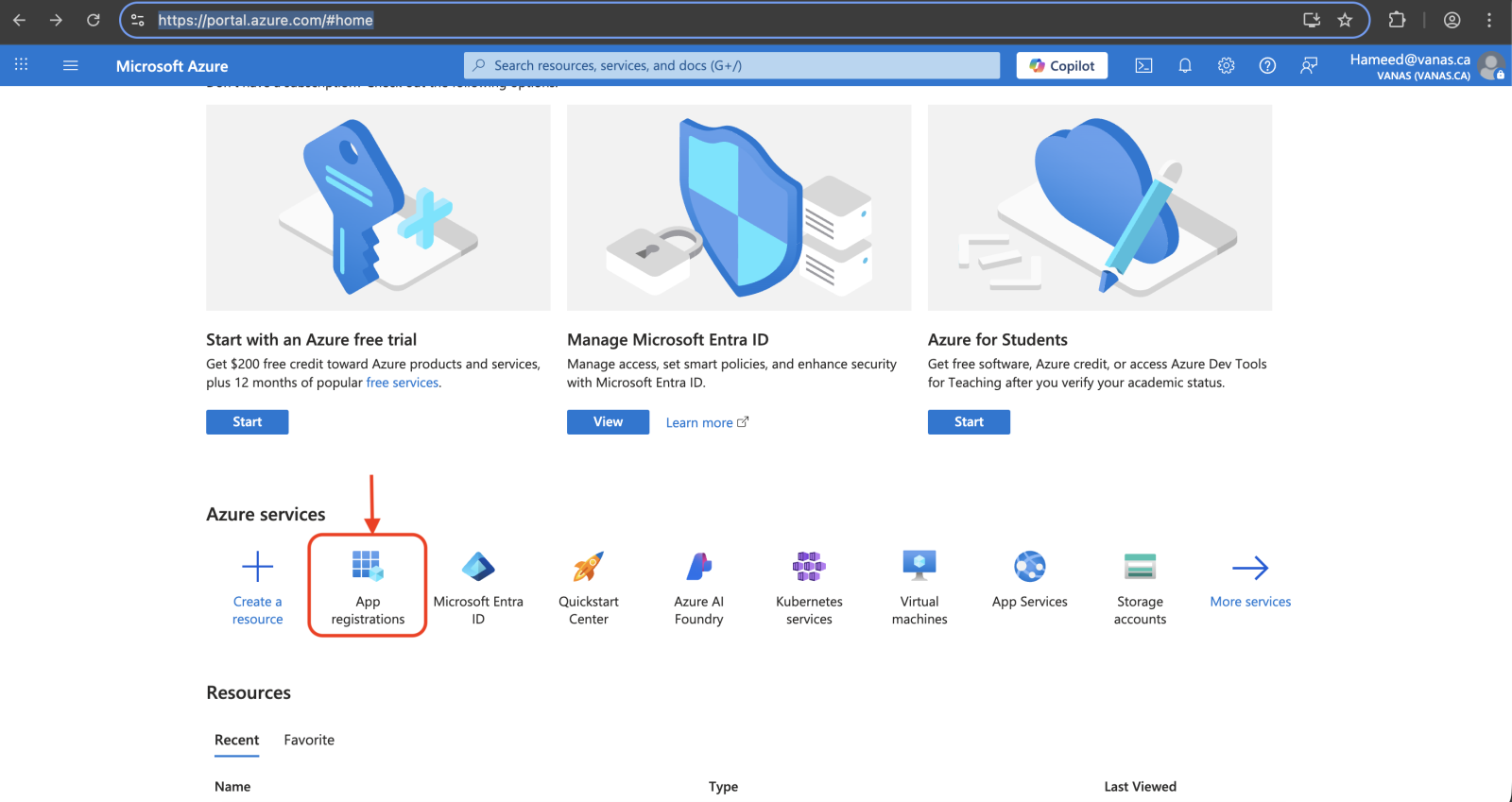
Log in to the Azure Portal.
Click on App Registrations.
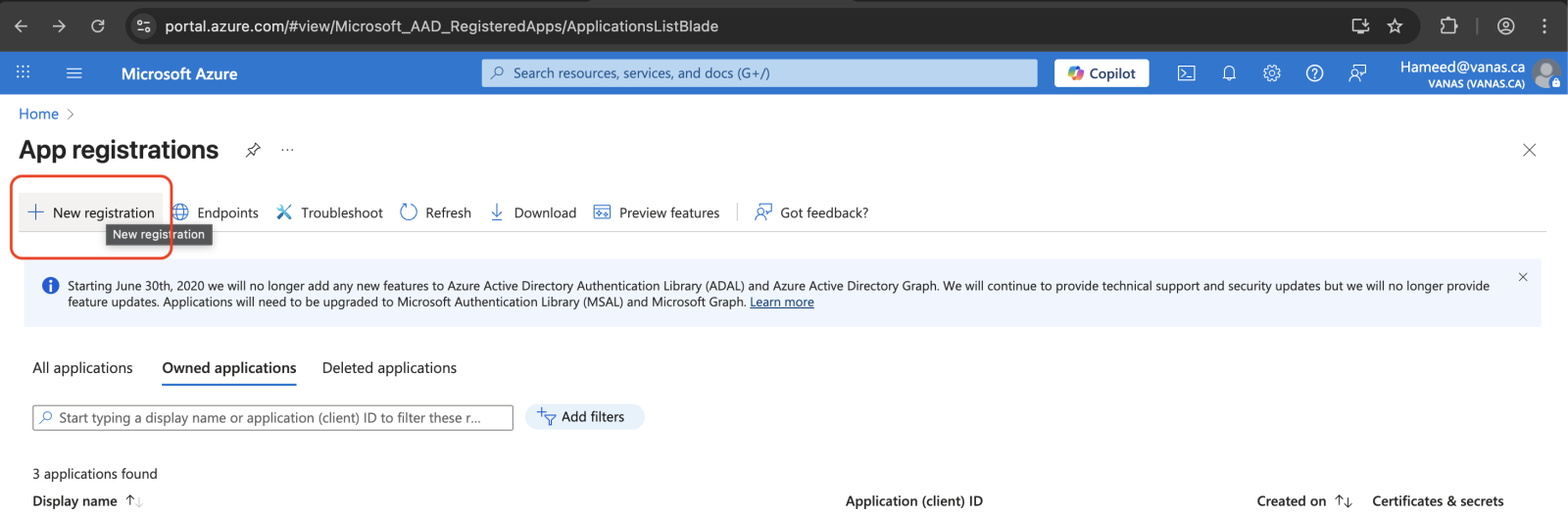
Inside App Registrations, click New App Registration.
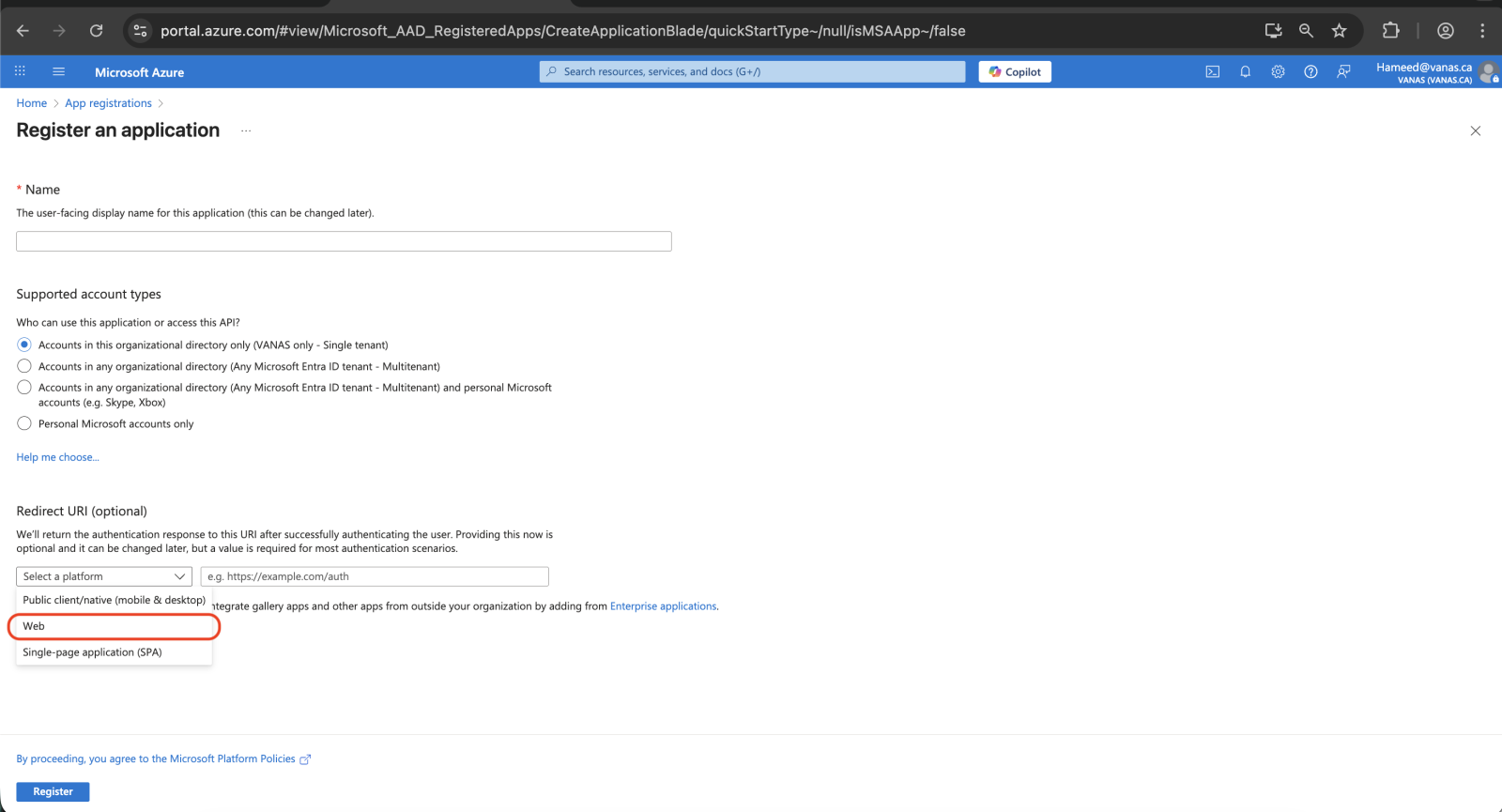
On the App Registration screen:
Enter the App Name.
Select the supported Account Type. (It is recommended to use Organization Directory for API access.)
Enter the Redirect URL:
https://your_domain.vanas.ca/csrf/teams/callback(Example: https://dev.vanas.ca/csrf/teams/callback)Select Web as the platform for redirection.
Click Register to register the application.
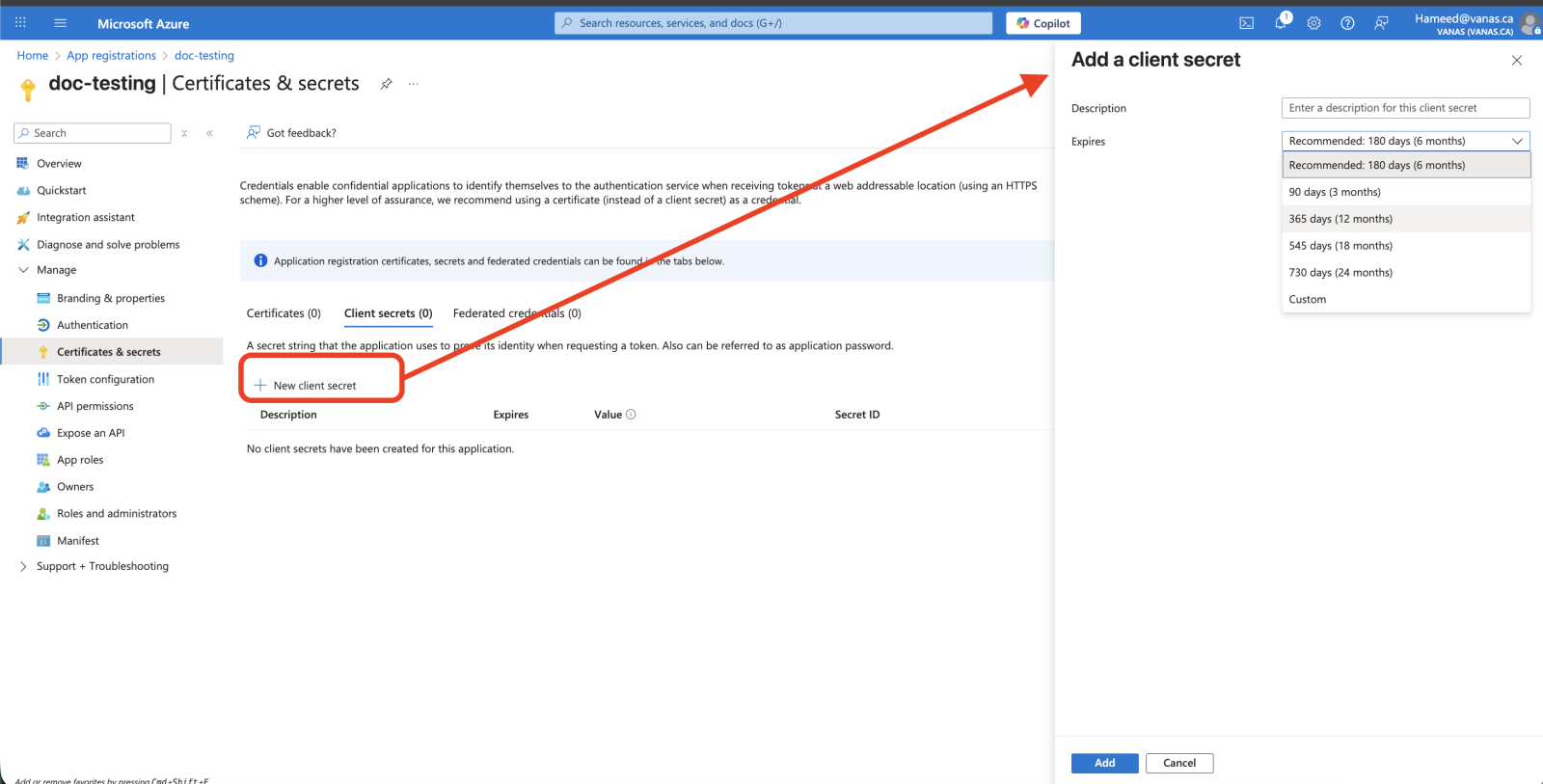
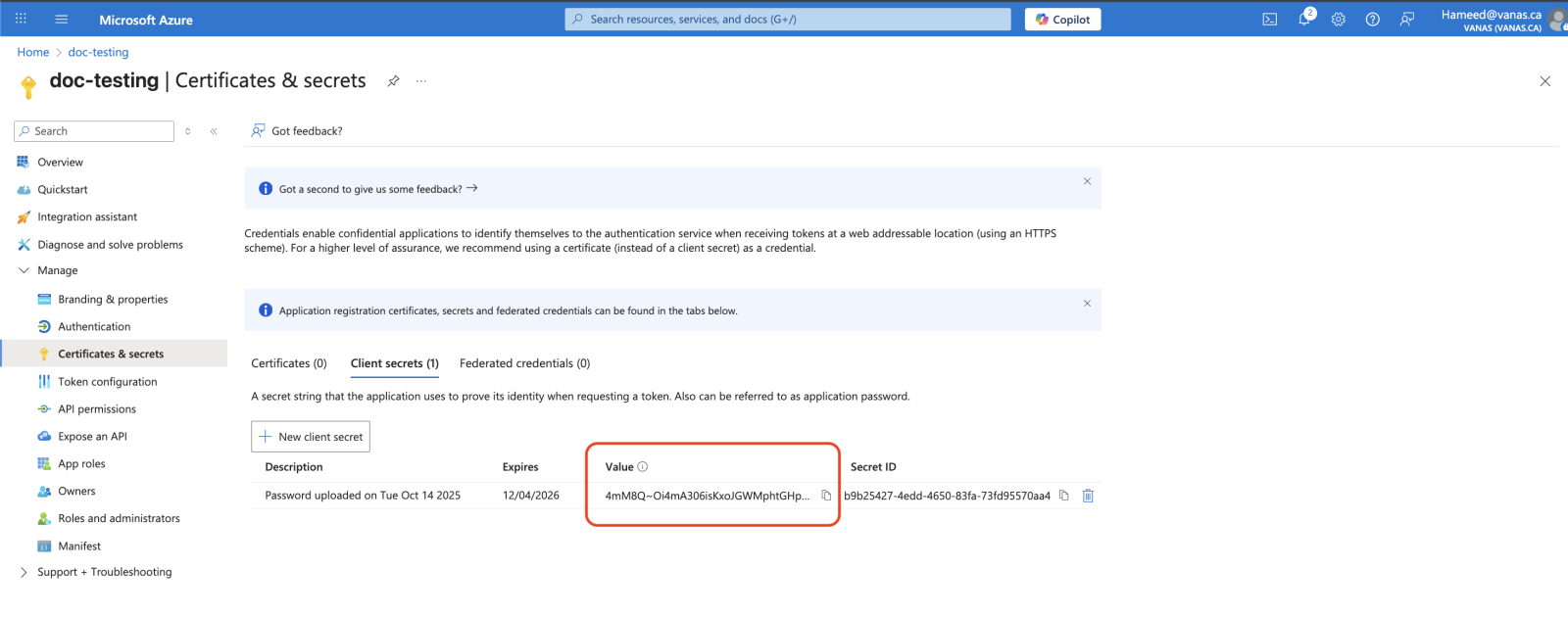
Navigate to Certificates & Secrets to create a Client Secret for authentication during meeting token generation.
After creating the Client Secret, copy and save it. You will need this value in the LMS Teams configuration settings page.
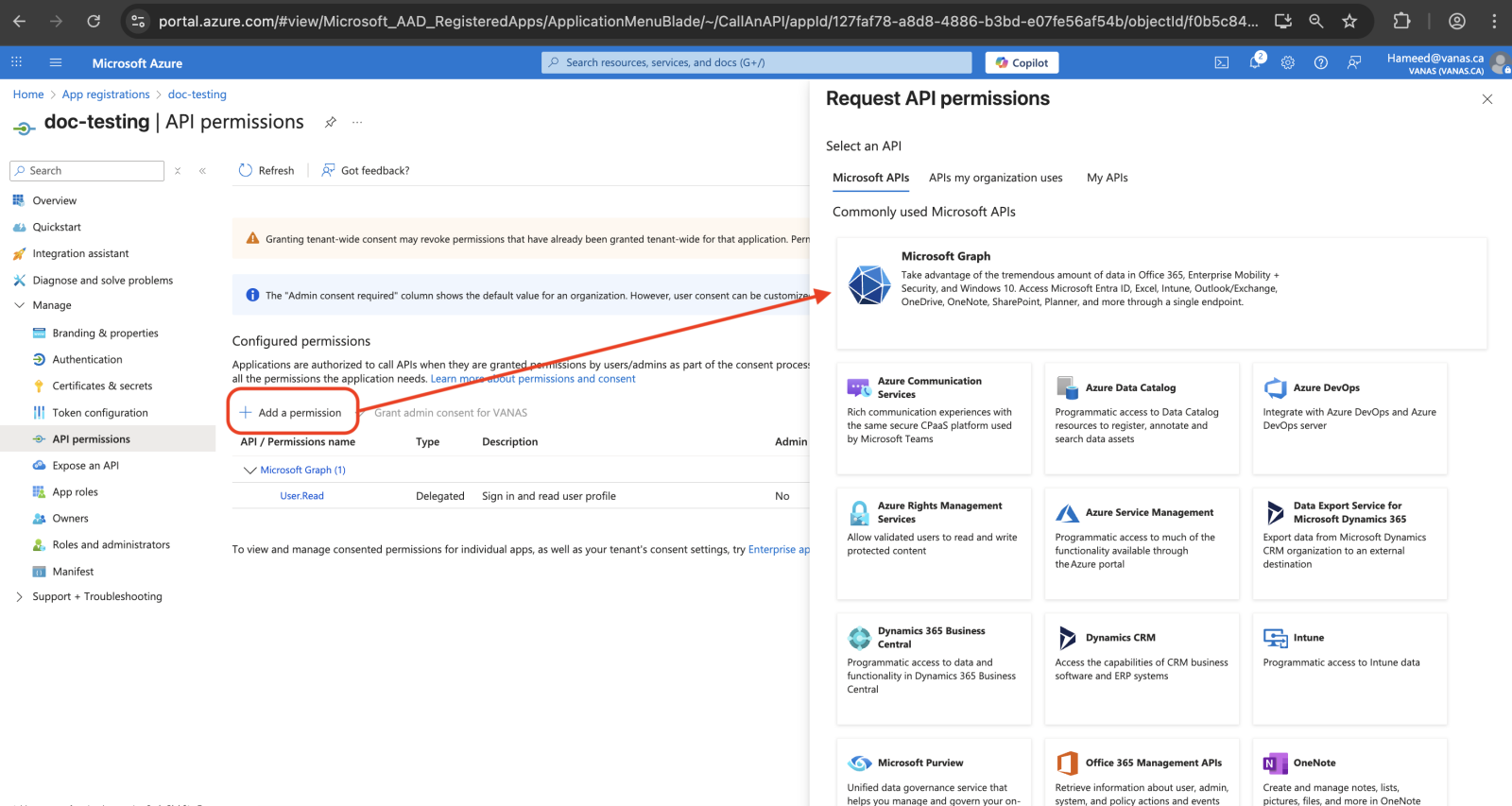
Navigate to API Permissions to allow meeting creation through the registered API app.
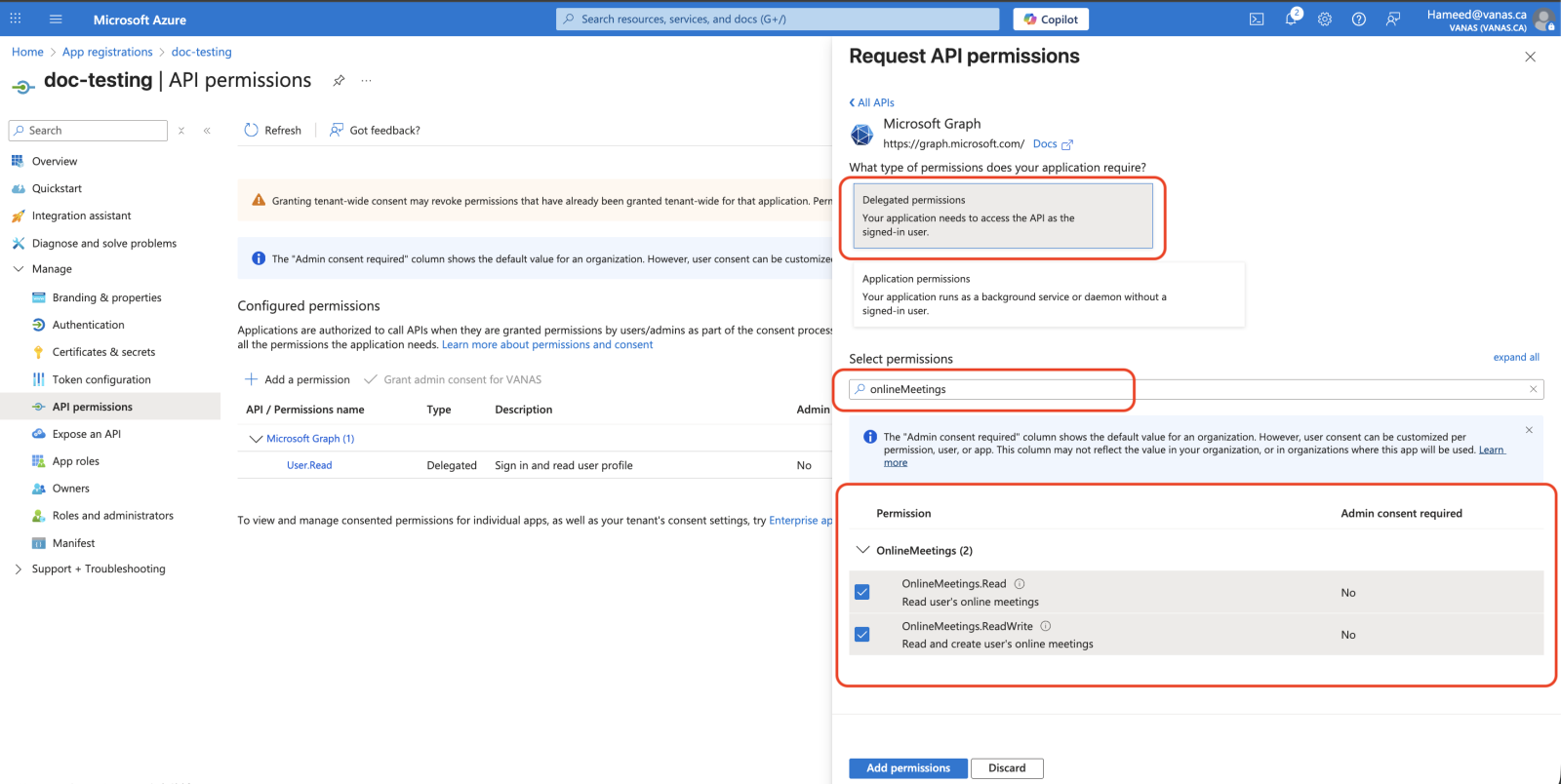
Click Microsoft Graph and add the OnlineMeetings permission.
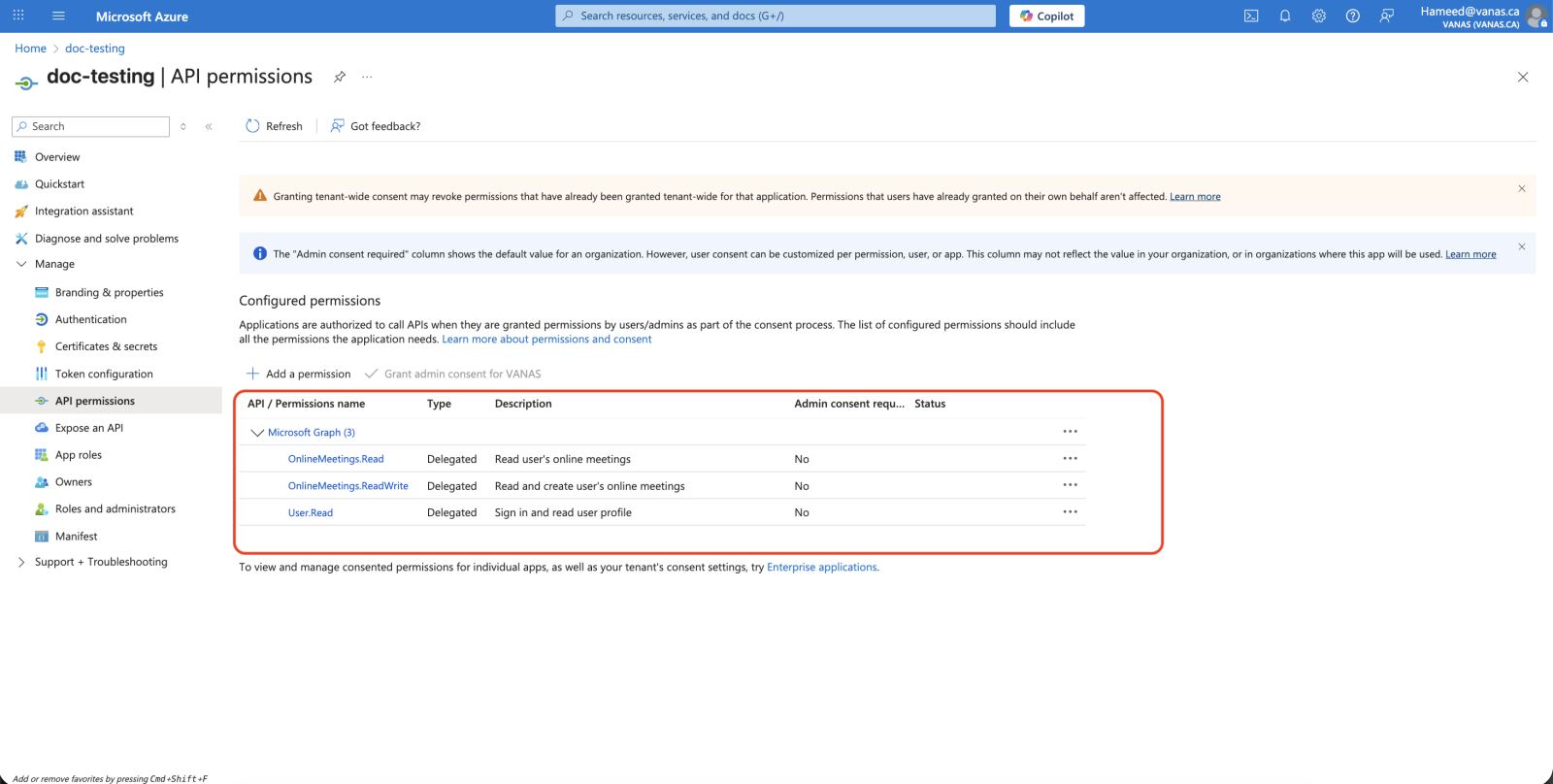
This step must be completed by an Administrator account or approved for the application to function correctly.
Ensure all permissions are approved and granted by an administrator.
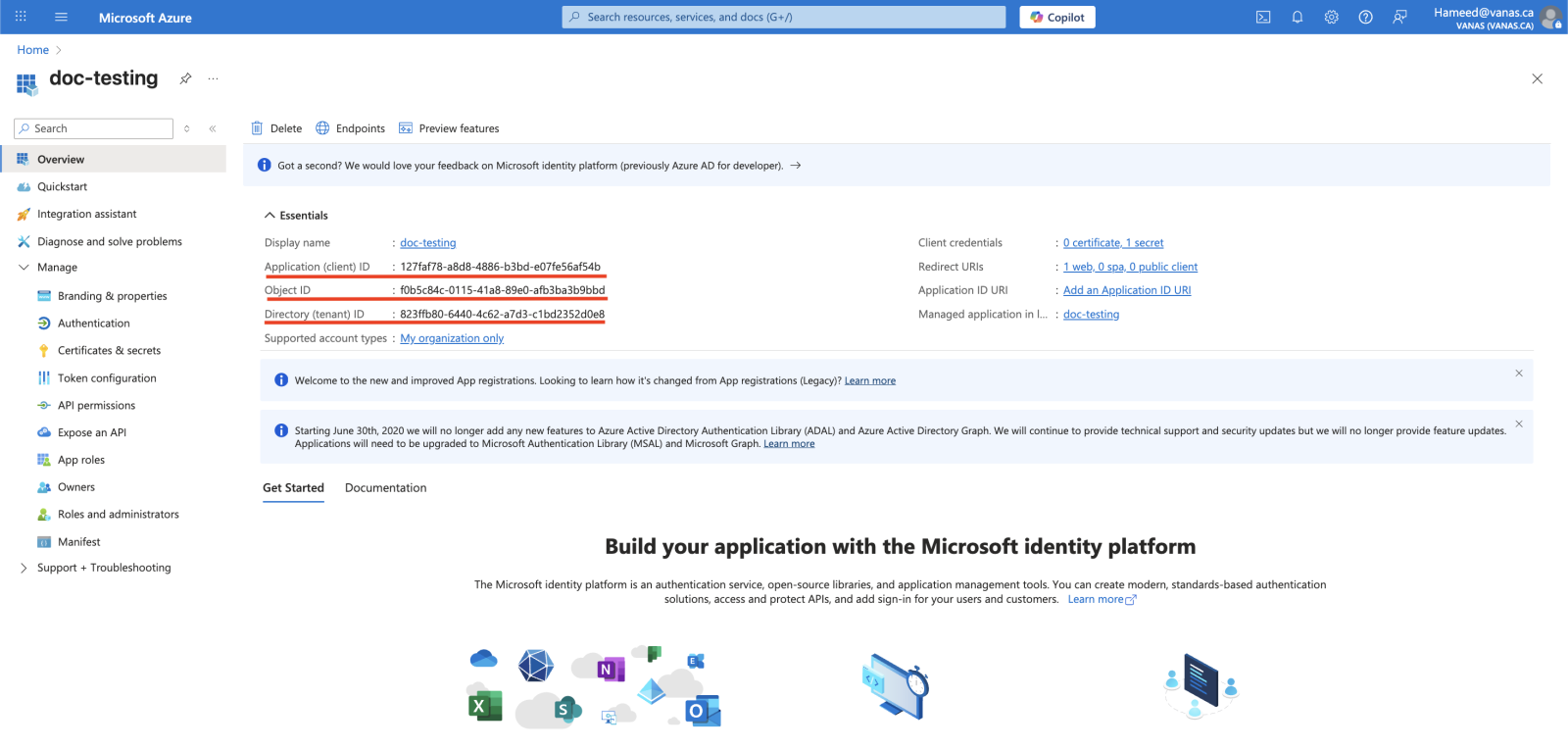
On the Overview screen, copy the highlighted key variables for the application platform:
Tenant ID
Object ID
Client ID
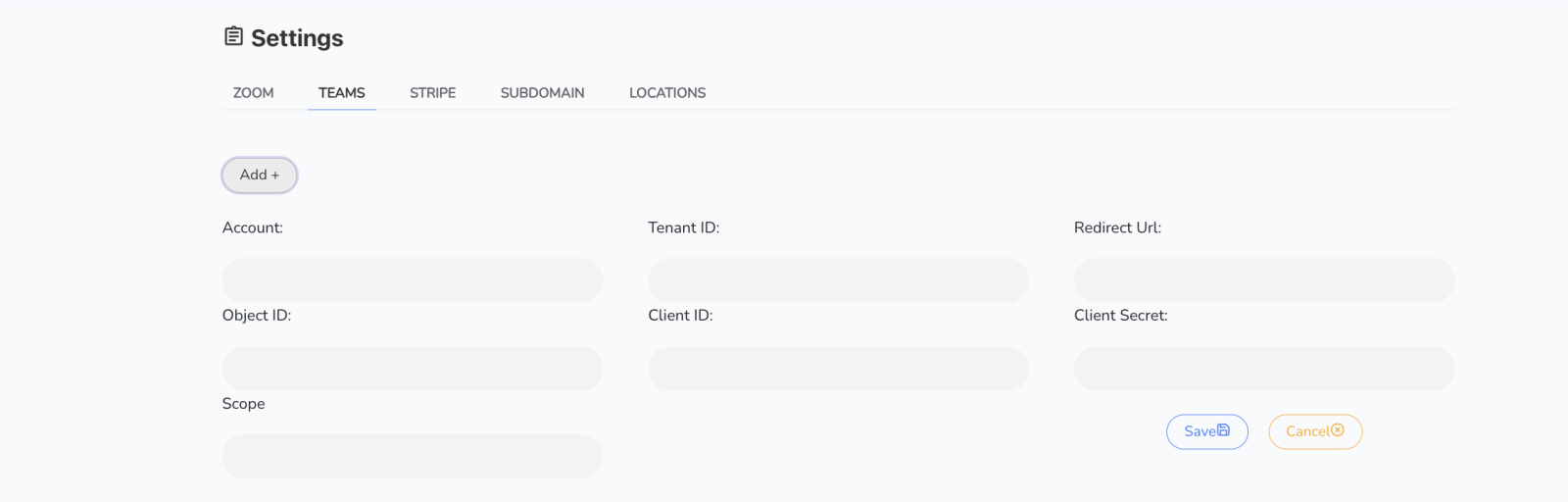
In VANAS LMS, go to Settings → Teams tab.
Add the copied Azure credentials into the Teams configuration settings.
How to Test
Log in to VANAS LMS as an Administrator.
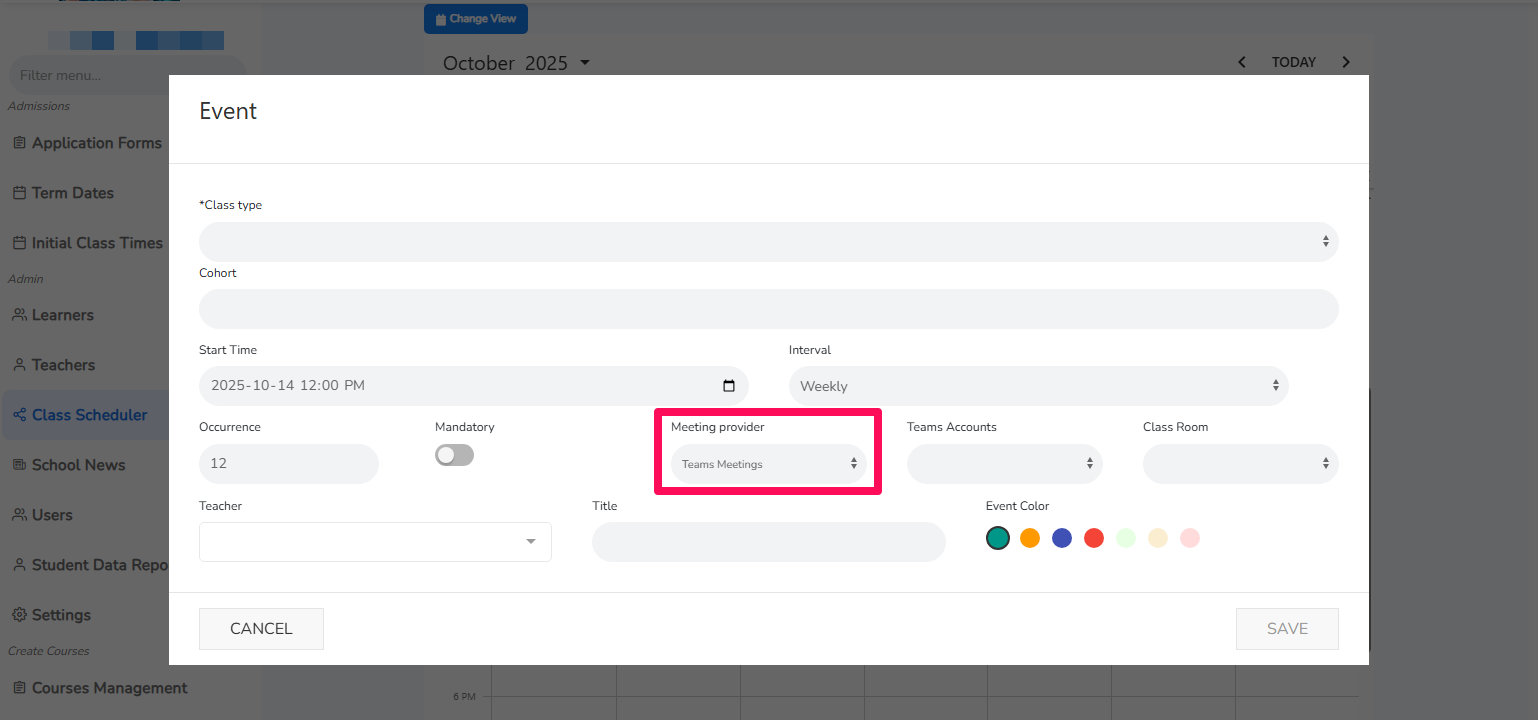
Navigate to Scheduler.
Create an Event.
Select your Teams credentials to confirm the connection is working.
Troubleshooting
If meeting creation fails, verify that OnlineMeetings API permission has been granted and approved by an administrator.
Confirm that the Redirect URL matches the one entered in Azure exactly.
Check that the Client Secret has not expired or been deleted.
Ensure all required IDs (Tenant ID, Object ID, Client ID) are correctly entered in VANAS LMS.
If issues persist, re-register the app or contact VANAS technical support.
Was this article helpful?
That’s Great!
Thank you for your feedback
Sorry! We couldn't be helpful
Thank you for your feedback
Feedback sent
We appreciate your effort and will try to fix the article